How to Fax a Document: Complete Guide for 2026
You've finished the form, signed the contract, or gathered the records. Then the recipient asks you to fax them. You don't have a fax machine, the deadline is approaching, and you need to know whether sending from your laptop or phone will work.
Learning how to fax a document is straightforward. Choosing the right method takes more judgment. Start with what you're sending, how urgently it needs attention, and who will collect it at the other end. The right approach gets a readable document to the right destination without creating unnecessary expense or privacy risks.
Choosing the Right Way to Fax
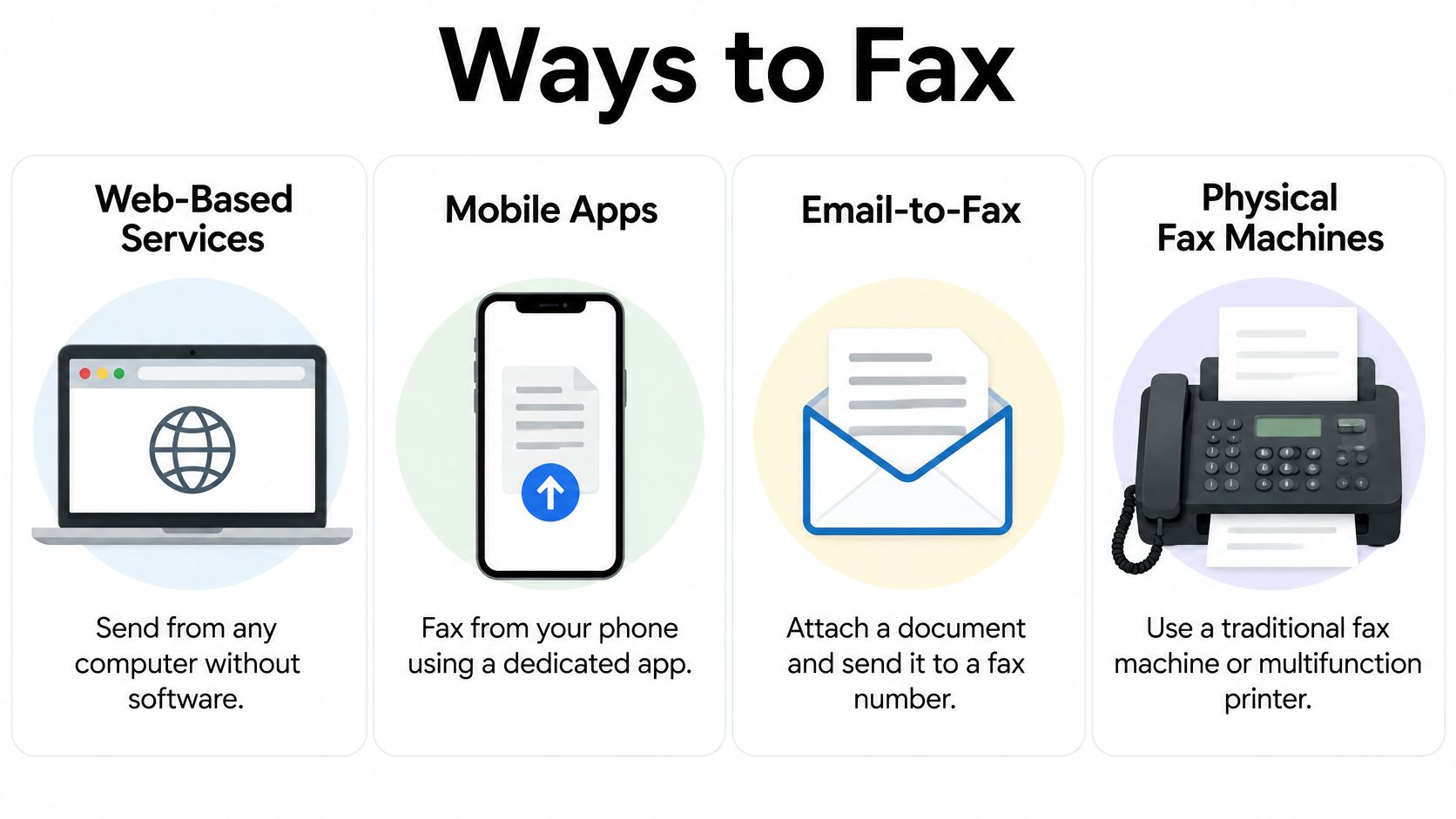
Choose your sending method around your situation, not the recipient's equipment. A recipient with a traditional fax machine doesn't necessarily require you to use one yourself. Web-based faxing handles the scanning and telephone-network steps electronically while preserving the familiar document-to-fax-number workflow described in the overview of fax technology.
Your practical options are a browser-based service, a mobile fax app, email-to-fax, or a physical fax machine or fax-enabled multifunction printer.
Match the method to the job
A browser service is a sensible starting point when your document is already on your computer and you only fax occasionally. You avoid setting up hardware, but you still need to check destination coverage, document limits, charges, and the service's handling of uploaded files.
A mobile app suits paperwork that's physically in front of you while you're away from your desk. Its main trade-off is preparation: capturing a clean page with a camera takes more care than uploading an existing PDF.
Email-to-fax fits recurring work when an organization already has a configured service. It can keep sending within an established inbox workflow, but it isn't the same as attaching a file to an ordinary email addressed to the recipient.
A physical machine makes sense when it's already working, authorized for your documents, and close at hand. Walking to an unfamiliar machine and figuring out its connection under deadline pressure is a different proposition.
| Your situation | Practical starting point | Main trade-off |
|---|---|---|
| Occasional digital document | Browser-based fax | Check service limits and file handling |
| Paper document while traveling | Mobile app or mobile browser | Camera capture needs careful review |
| Recurring office correspondence | Configured email-to-fax service | Requires correct service setup |
| Signed paper beside a working machine | Physical fax machine | Requires functioning equipment and connection |
| Sensitive or urgent records | Recipient-approved method | Authorization and human follow-up matter most |
Decide who needs to act
Machine delivery and human attention are separate requirements. If an office needs a routine form in its intake queue, your method can prioritize convenience. If a named person must act before a deadline, establish who will collect and route the document before choosing the sending method.
Practical rule: For an urgent fax, arrange the receiving end before pressing Send.
Cost deserves the same situational approach. For occasional use, compare the total charge for the document you're sending rather than choosing a recurring arrangement you won't use. For ongoing work, prioritize manageable records, predictable handling, and a process colleagues can repeat.
Preparing Your Document for a Clean Fax
Open the final document before opening the fax form. Preparation is where you catch missing signatures, sideways pages, faint text, and attachments that shouldn't leave your device.
For sensitive material, preparation also means checking the destination and the recipient's authority. The U.S. Department of State's fax-handling requirements specifically require those checks for sensitive-but-unclassified material and require the recipient to be present when it leaves government control. Those are institutional requirements, but they offer a useful model for careful sending.
Build a readable final file
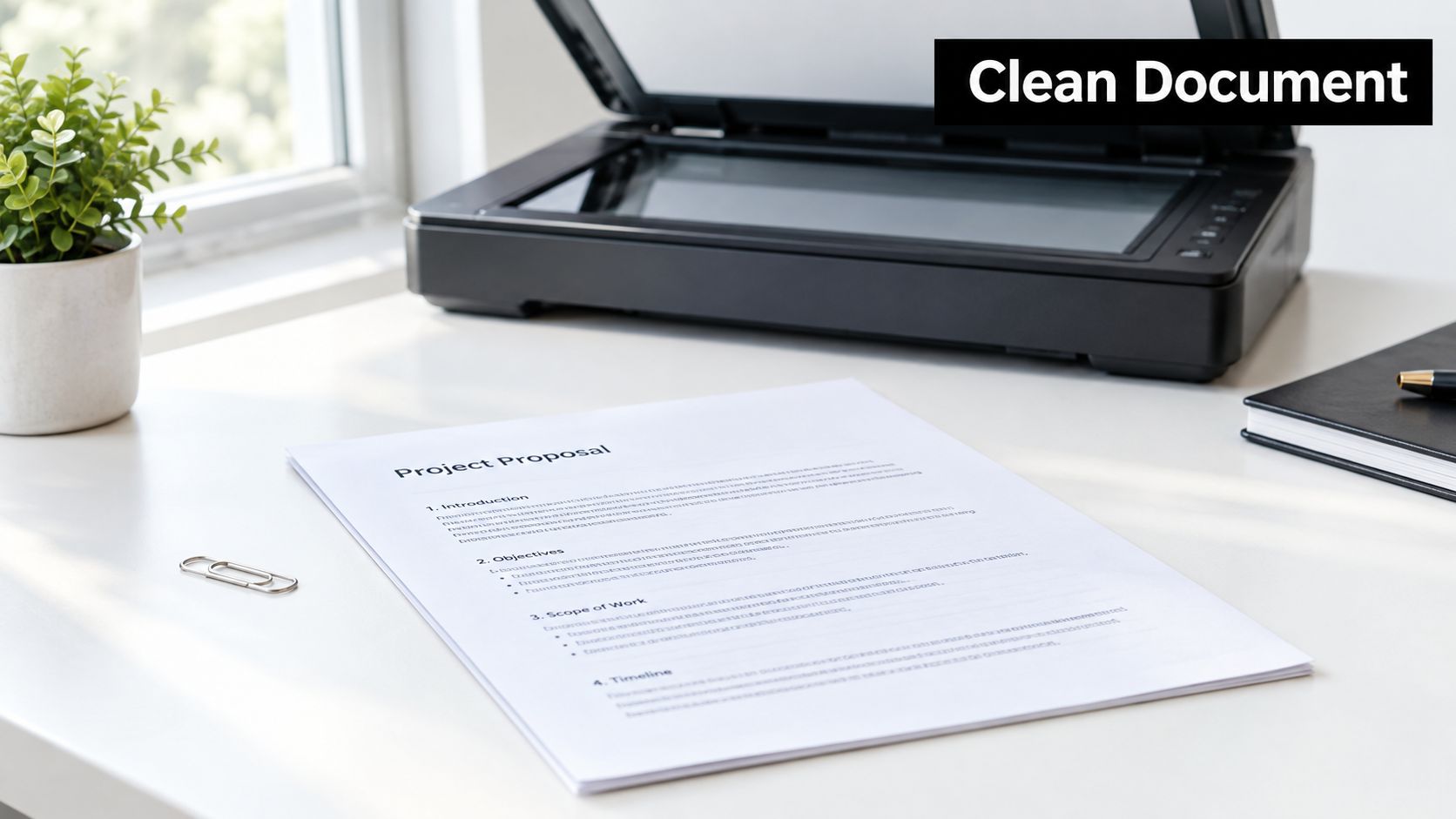
Use a clean PDF when possible. Keep each sheet as a separate, upright page, and inspect the exported file rather than assuming it matches your editable document.
- Check completeness. Include every required attachment and signature page. Remove draft pages and unrelated records.
- Simplify the appearance. Remove decorative backgrounds and unnecessary color. Make sure important information remains distinguishable without color.
- Inspect difficult areas. Look closely at small print, handwritten entries, dates, and signatures. If they're hard to read in the source, fix them before sending.
- Preserve the edges. Check that scanning or cropping hasn't removed form labels, reference numbers, or text near the margins.
Don't shrink a long document merely to reduce its page count. A compact file isn't useful if the recipient can't read the conditions or identify the signature. For a closer preparation check, use this guide to improving fax image quality.
Make the cover sheet useful
A cover sheet should help someone route the document without exposing unnecessary information. Include the sender's name, intended recipient or department, callback details, and page count. State whether that count includes the cover sheet so the receiving staff don't have to guess.
For a medical record or identity document, avoid copying sensitive details into the cover message unless they're necessary for routing. A short purpose statement and an appropriate reference can be more useful than a detailed summary.
A cover sheet should identify the delivery, not duplicate the confidential document behind it.
Before proceeding, compare the destination against a trusted contact record or confirm it directly with the recipient. Include the required country and area code, using the format requested by the service or machine. Don't assume a telephone number printed near the fax number is interchangeable with it.
Finally, check the recipient's submission instructions. Required signatures, attachment order, page-count conventions, and filing references can matter as much as legibility.
Sending a Fax Online with SendItFax
You have a signed form ready, but no access to a fax machine. For an occasional fax to a U.S. or Canadian destination, SendItFax accepts PDF, DOC, and DOCX uploads without requiring an account. It is one option alongside mobile apps, email-to-fax, and office equipment.
Use an existing PDF when possible. Before uploading a Word file, inspect the saved version for unresolved edits, comments, incomplete fields, and unexpected page breaks. The upload step is for sending, not reviewing the document.
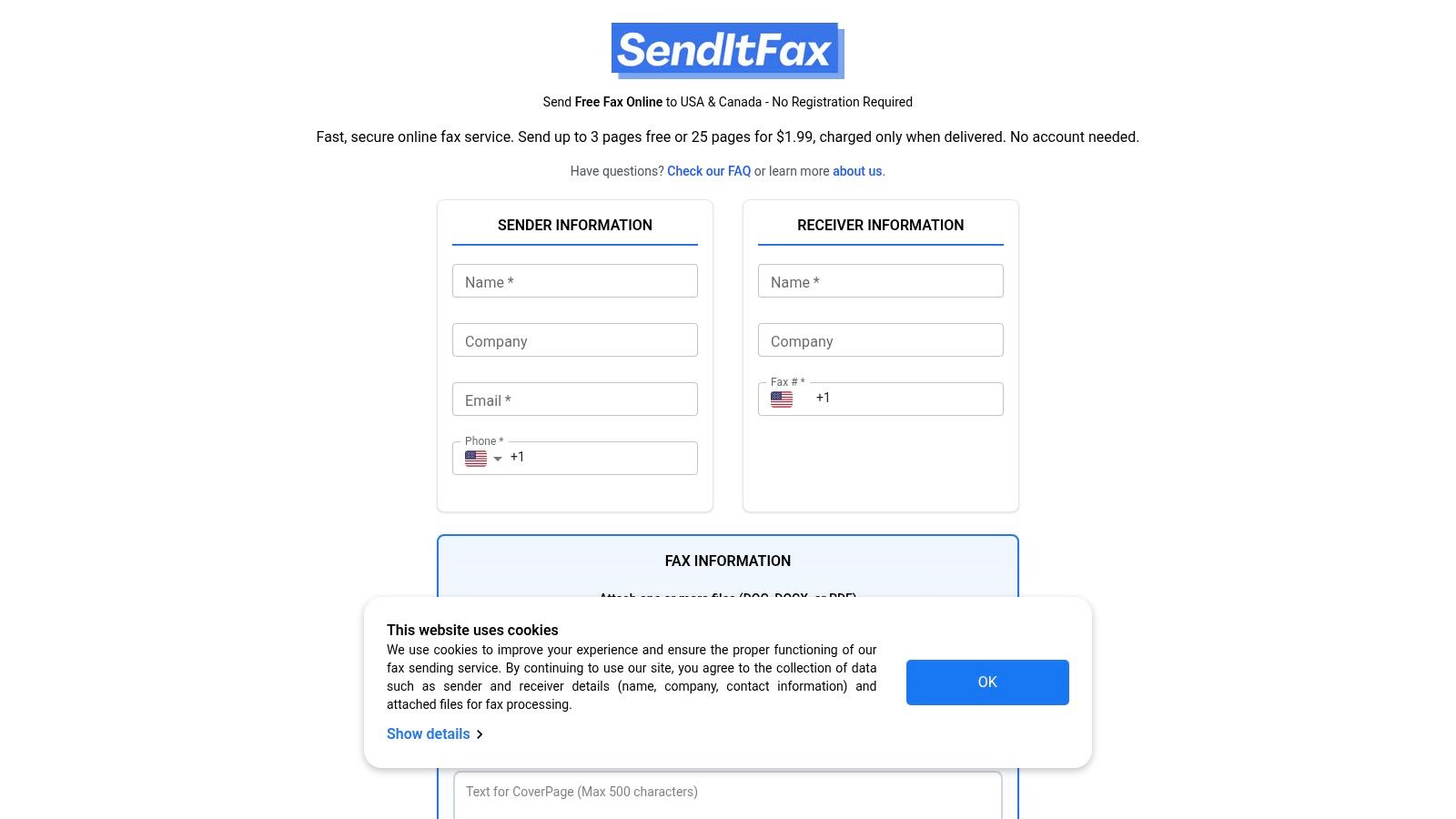
The sending form is easier to complete accurately when you have the final file and confirmed destination at hand. Enter the requested sender details so the receiving office can identify you or ask about an unclear submission. Add the intended person or organization and fax number, then compare the number with your trusted record.
Before attaching the file, check its name. Draft and signed versions can look similar, and selecting the wrong one can undermine an otherwise successful transmission. Add a cover message only if needed, using it for routing details such as the department, purpose, or necessary reference, rather than repeating the document.
Review the selected option before submitting. Check the current page allowance, cover requirements, delivery terms, and any charge. Keep the original file after sending so you can inspect the exact version submitted if the recipient reports a missing attachment or unreadable signature.
Match the service option to the job
SendItFax offers a free option and an Almost Free paid option. The free option has a smaller document allowance, a daily sending limit, and a branded cover. The paid option accommodates longer documents, offers priority delivery, removes the branding, and lets you omit the cover page.
A short routine form may fit the free option. For a longer contract or a submission where cover presentation matters, consider the paid option. Check the terms shown on the sending form before submitting, since the same treatment may not apply to every document.
Priority delivery isn't a promise of immediate review. It doesn't confirm that the receiving office is staffed, that its fax line is available, or that someone will open the document as soon as it arrives. If a caseworker, clerk, or clinician needs to act by a deadline, arrange follow-up with the receiving office rather than relying on delivery speed alone.
Choose based on what needs to improve: document length or presentation may call for a different service tier, while recipient action requires a receiving-side arrangement. After submitting, track the job until it reaches its final status. An upload finishing is not the same as confirming the fax task is complete.
Faxing from Your Phone or Email
Choose the method based on what you have in hand and who must receive it. If the paperwork is on your desk and you're away from a computer, a phone can capture and send it. If the original is already a digital file, upload that file rather than printing and photographing it. For a one-time fax, a browser may be simpler than installing an app. Repeated mobile sending may justify a dedicated app, provided it meets your privacy and destination needs.
For invoice paperwork, complete the invoice before sending. The GetBill invoicing guide covers preparing the document; faxing handles its delivery.
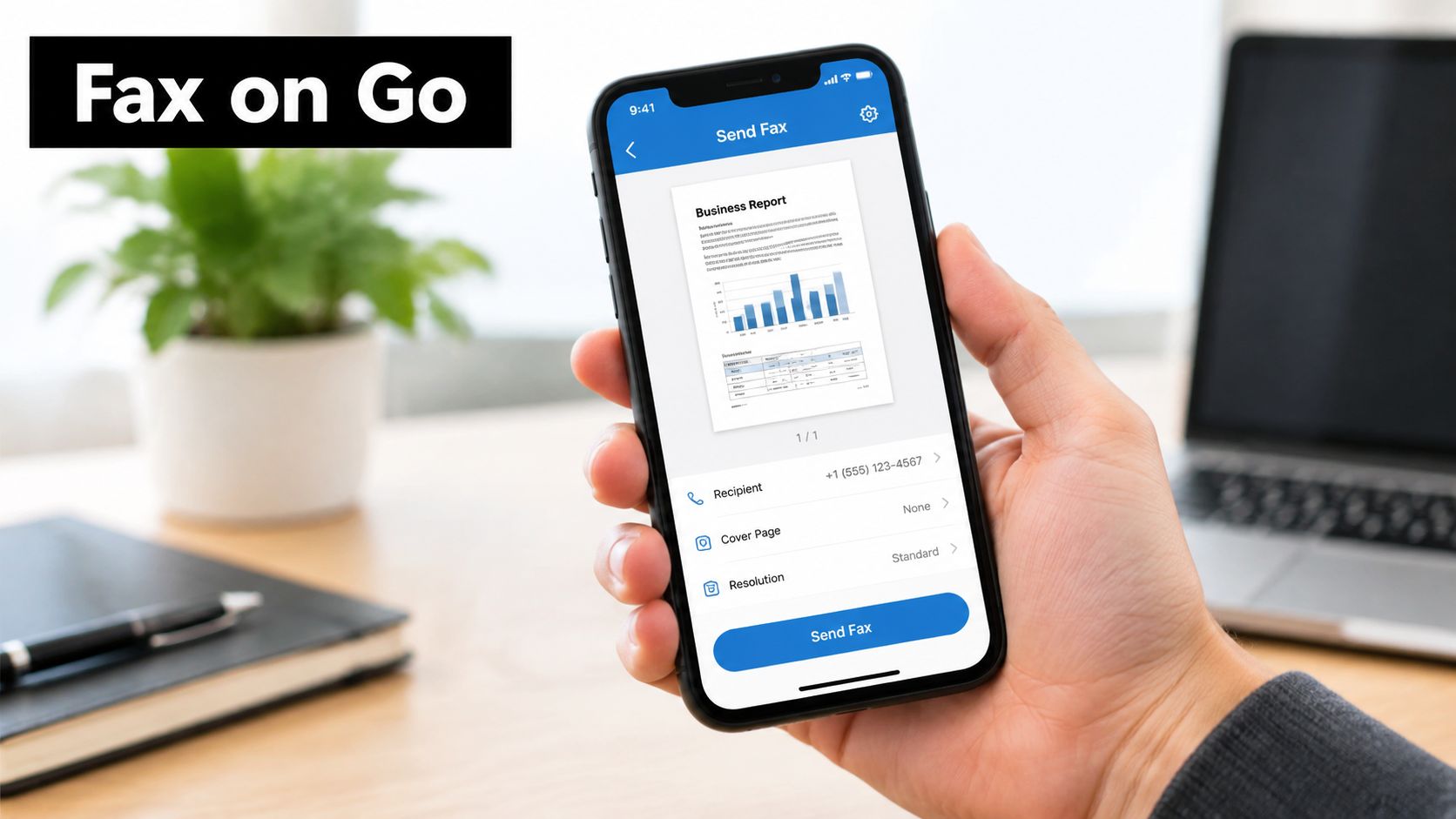
Capture paper without losing detail
Set the page flat under even lighting and hold the phone parallel to it. Keep your shadow off the text, then inspect the full image before attaching it. A small camera preview can hide blur or clipped edges.
- Keep every corner visible. Crop away the desk, not the document.
- Check focus on the text. Retake a blurred image rather than expecting a filter to restore detail.
- Inspect faint handwriting. Contrast adjustments can make text clearer, but may erase light marks.
- Arrange pages deliberately. Put attachments in the required order and remove duplicate captures.
Before installing an app or uploading records, check whether the service supports the destination and file format, what it charges, and whether its privacy terms fit the document. If an upload fails, confirm that the file is saved locally and fully downloaded, then check the format and service limits. Repeatedly pressing Send can leave you unsure which jobs are active.
Use email-to-fax only with a configured service
Email-to-fax works through a provider that has linked your email account to fax delivery. Follow its addressing format, attach the final document, and send from the authorized account. The provider sets how it handles the subject line and message body, so don't assume either becomes a cover sheet. Confirm destination coverage before sending. This walkthrough of faxing from email explains the email workflow.
| Before sending | What to establish |
|---|---|
| Addressing | The provider's required destination format |
| Attachment | The intended final file is attached |
| Cover handling | Whether the subject or message body is included |
| Notifications | Where the provider sends the delivery result |
Email is convenient when a service is already configured, but the Sent folder confirms only that your email went out. Check the provider's separate fax result and keep it with the document record. For sensitive paperwork or a recipient who needs confirmation, use the service's delivery status rather than relying on the outgoing email alone.
Using a Physical Fax Machine or Multifunction Printer
A signed paper form beside a working office fax is a good reason to use the machine. An unfamiliar printer across town, especially when a fax is urgent, is a poor one. Choose this method when the equipment is already configured, the originals are ready, and you can stay nearby to check the result.
Before loading anything, confirm that the device can send faxes. A scanner or copier alone cannot. For a multifunction printer, check the model's fax instructions and make sure its required connection works. Test the setup before feeding sensitive originals.
Set the pages according to the feeder diagram or device instructions. Some machines require face-up loading, others face-down. Align the stack, remove staples, and check whether double-sided pages need to be handled manually.
At the machine, follow the job from start to finish:
- Select the fax function, not scan-to-email or copy.
- Load the intended pages in order and ensure the feeder can take them cleanly.
- Enter the full destination number, including any outside-line access required by the device.
- Start transmission and stay nearby to see whether the machine accepts and sends the job.
- Collect the originals and any report that may contain the destination or document details.
For ordinary text, standard resolution is usually a practical starting point. Fine mode can help with small print, signatures, and line drawings. The technical description of Group 3 fax capabilities describes a basic resolution of approximately 200 by 100 dpi and an additional 200 by 200 dpi mode. Avoid color or grayscale unless the receiving system supports it. If text is unclear, improve the source document first. A higher-detail transmission setting cannot restore information missing from the original scan.
Respond to the specific problem, not just the error message. For a feeder jam, stop and determine which pages the machine scanned before restarting. Sending the remaining stack without checking can leave the recipient with an incomplete or confusing submission. A busy destination and a transmission error call for different follow-up, so check the displayed status and the device instructions.
At the machine: Keep the originals beside you until you've reconciled the job result with the intended document.
If the display doesn't make the result clear, check the job history or print a transmission report as the device instructions describe. Returning to the home screen does not confirm that the fax succeeded.
A dedicated fax line at the recipient's office is not, by itself, a reason to use a physical machine. The method makes sense when the equipment and workflow fit the job, such as sending a freshly signed paper form from a configured office printer. When setup is uncertain or time is short, an unfamiliar machine adds extra steps.
Security, Legal Considerations, and Troubleshooting
Delivery confirmation is evidence of a transmission result, not proof that the intended person read the document. That distinction matters most when a fax carries a deadline, sensitive information, or instructions someone must act on.
In a 2025 healthcare fax survey announcement, 88% of practitioners said fax-related delays affect patient care. For an urgent record, waiting passively for an automated status isn't an adequate follow-up plan.
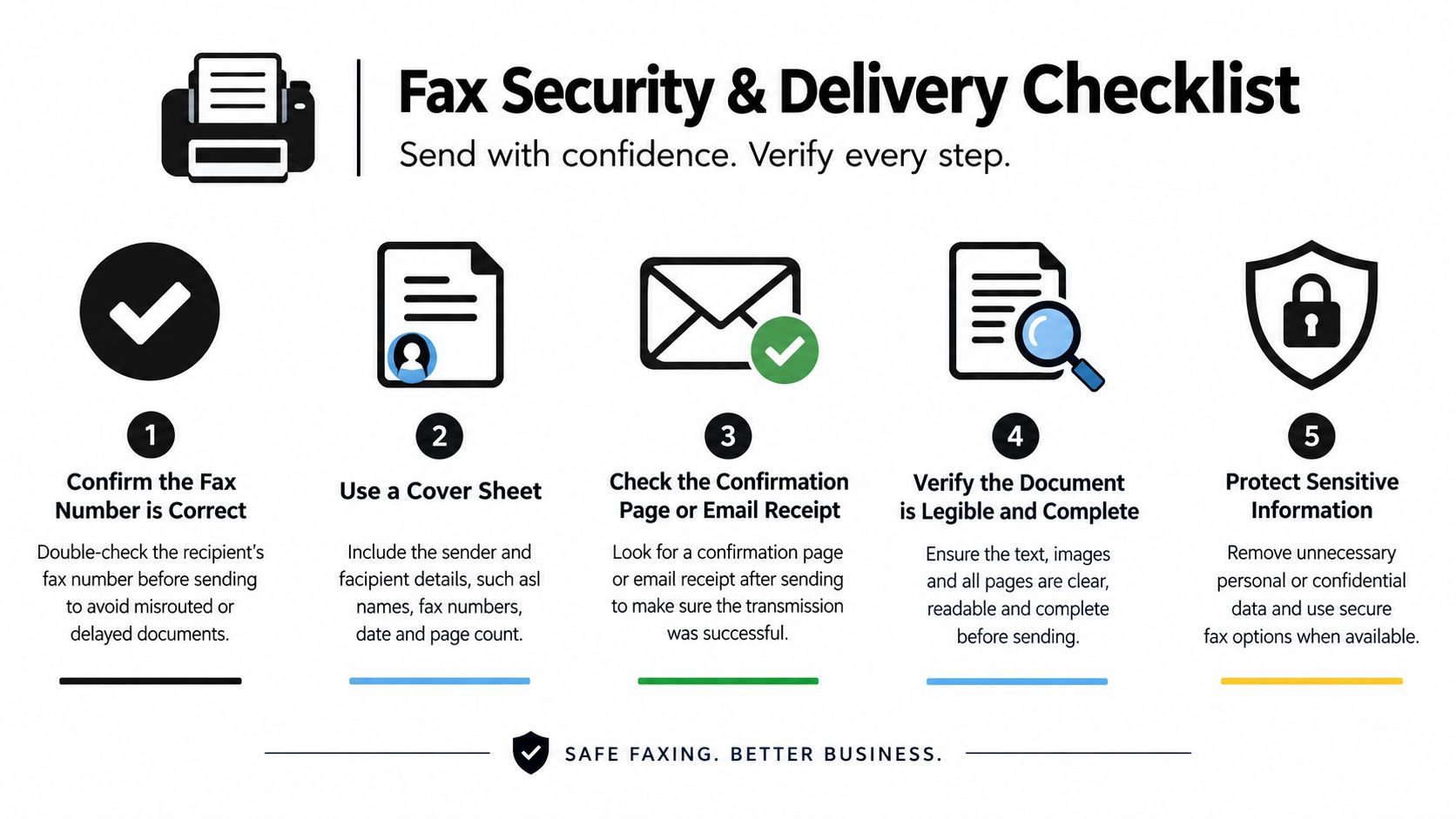
Check suitability before transmitting sensitive records
For medical, legal, financial, and identity documents, establish whether the service and receiving process meet the applicable requirements. Don't infer suitability from a confidentiality notice or a general claim that online faxing is secure.
The Yale privacy procedure for faxing protected information provides institutional guidance on safeguards such as destination verification, confidentiality cover sheets, and secure receiving arrangements. For a practical handling review, consult the publisher's fax confidentiality guidance.
Before a legal filing or regulated submission, ask the receiving office about accepted delivery methods, required signatures, retention instructions, and what counts as meeting the deadline. Don't assume a transmission timestamp establishes acceptance under the recipient's rules.
If fax isn't suitable or fails, obtain approval for an alternative. LiveDocument's guidance on sending files securely by email can help you evaluate an email fallback, but ordinary email shouldn't become the default just because the fax didn't work.
Resolve failures without creating duplicates
Read the final result before retrying. A queued job may still be active, while a failed job needs investigation.
| Reported problem | Practical response |
|---|---|
| Busy or unresponsive destination | Contact the office or retry after checking availability |
| Incorrect destination | Reconfirm the number before another attempt |
| Unreadable pages | Inspect and repair the source document |
| Resolution-related failure | Use a supported setting and resend |
| Incomplete receipt | Establish which pages arrived before replacing the submission |
For an urgent fax with no human acknowledgment, call the receiving office and ask staff to locate it using the sender, destination, time, and document description. If they can't find it, agree on whether to resend the complete document or use an approved alternative. Identify a replacement clearly to reduce duplicate processing.
Finish each job with a short record:
- Inspect the result. Save the final confirmation or failure report.
- Reconcile the pages. Compare the reported count with the intended submission.
- Confirm critical receipt. Ask the responsible person to acknowledge complete, legible delivery.
- Preserve evidence. Keep the submitted file, transmission record, and relevant acknowledgment according to applicable requirements.
- Escalate unresolved delivery. Contact the responsible office before the deadline and agree on the next action.
SendItFax offers browser-based faxing for documents going to U.S. and Canadian numbers, without a fax machine or account setup. Prepare your final file, confirm the recipient's requirements, and visit SendItFax to choose a sending option that fits your document.
Related Posts
Can You Call a Fax Number and What Actually Happens
Faxes or Faxs: The Correct Plural Spelling