How to fax a document from a computer: Quick, secure, and easy
Sending a fax from your computer is surprisingly simple with an online service. You just upload your document, punch in the recipient's fax number, and hit send. This whole process bypasses the need for a clunky, physical fax machine and effectively turns your computer into a secure document-sending powerhouse.
Why Bother Faxing from a Computer?
I know what you're thinking. In a world of instant messaging and email, why are we even talking about faxing? But the fax machine never really disappeared—it just went digital. Knowing how to send a fax from your computer isn't just a neat trick; it's a genuinely practical skill that blends old-school reliability with the convenience we expect today.
The Unmatched Security of Faxing
The number one reason faxing has stuck around is its rock-solid security. When you send a fax, your document travels over the Public Switched Telephone Network (PSTN). Think of it as a direct, dedicated line from you to your recipient.
This point-to-point connection is inherently safer and far less vulnerable to hacking or interception than email, which bounces your data across multiple servers.
For some industries, this level of security is absolutely essential:
- Healthcare: To stay compliant with HIPAA privacy rules, medical offices routinely fax sensitive patient records.
- Legal: Signed contracts, court filings, and other confidential notices are often faxed to ensure verifiable, secure delivery.
- Finance & Real Estate: Loan applications, closing documents, and financial agreements rely on the secure and legally recognized nature of faxing.
It's a Legally Binding Form of Delivery
In many legal situations, a faxed document—complete with its confirmation page—is treated as a legally binding original. That little confirmation slip is your proof, a receipt showing precisely when and where the document was successfully received.
Email just doesn't offer that same level of verifiable proof, which is why it often falls short for official business where you absolutely need to confirm delivery.
The staying power of faxing is truly impressive. Even today, an estimated 9 billion faxes are sent worldwide each year, which speaks volumes about its role in professional communication.
The fact that so many organizations still maintain active fax numbers is a testament to its reliability. It remains a standard for secure document exchange. Learning how to fax from your computer lets you tap into this trusted network without leaving your chair, giving your documents the security and legal weight they need.
For a closer look at the security side of things, check out our article on whether fax is more secure than email.
Sending Your First Fax with SendItFax
Let’s walk through the process of sending a fax right from your computer. We'll use a real-world example: you need to send a signed lease agreement to your new landlord, and you need it done fast. This is the perfect job for an online fax service like SendItFax, which lets you handle the whole thing in minutes without creating an account or messing with complicated software.
The beauty of this method is its simplicity. You just upload your document, punch in a few details, and off it goes.
Preparing Your Document for Sending
First things first, get your document ready. SendItFax plays nice with the most common file formats you'll encounter, like PDF, DOC, and DOCX. So, for our lease agreement, you’d just need the final, signed version saved as a PDF on your computer.
A quick tip from experience: a clean, high-contrast document faxes best. If you scanned the signed pages, double-check that the text is sharp and easy to read. Anything blurry or faded can turn into an unreadable mess on the other end.
Here’s a look at the simple interface you’ll use.
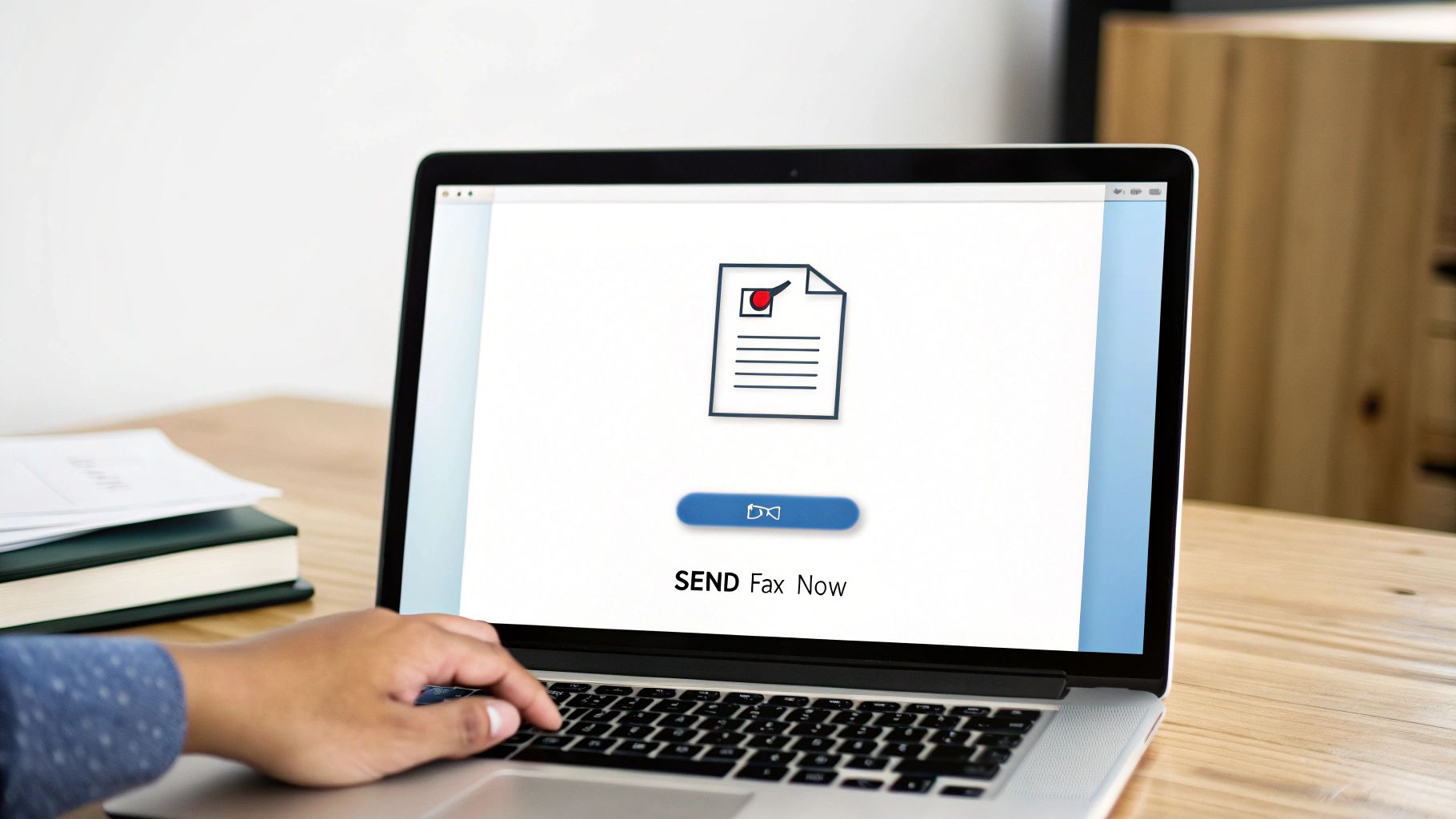
As you can see, it’s all laid out cleanly, guiding you straight to what you need to do. No guesswork. Once you've selected your file, it's time to tell the system where it's going.
Entering Sender and Recipient Details
This part is all about accuracy. You’ll need to provide just a few pieces of information so the fax gets to the right person and you get a confirmation receipt.
For our lease agreement scenario, it would look something like this:
- Your Name: Jane Doe
- Your Email: [email protected] (This is crucial! It's where your delivery confirmation lands.)
- Recipient’s Name: John Smith (The landlord)
- Recipient’s Fax Number: The landlord’s complete 10-digit fax number.
I can't stress this enough: always double-check the recipient's fax number. A single wrong digit is the number one reason faxes fail. It’s exactly like dialing a wrong phone number—it just won’t connect.
This information also helps build the cover page, so your landlord knows immediately who the fax is from.
Crafting a Professional Cover Page
The cover page is basically your introduction. While it might be optional depending on the service plan, it's good practice and a professional touch. It prevents your important documents from getting lost in a shuffle of papers at the receiving end.
Think of it as the envelope for your digital letter. You can add a short, clear message explaining what's inside. For our example, a simple note does the trick:
“Hi John,
Please find the signed lease agreement for 123 Main Street attached. I look forward to moving in on the 1st!
Thanks,
Jane”
That little bit of context removes any confusion and is a key part of learning how to fax a document from a computer like a pro.
Finalizing and Sending Your Fax
Okay, your document is uploaded, and all the details are filled in. You're ready to hit send. But first, take one final glance over everything. Is the fax number correct? Is your email spelled right for the confirmation?
Once you’re confident, go ahead and send it. The service does the heavy lifting, converting your file into a signal that a traditional fax machine can understand and dialing the number. If you're curious about the tech behind this, we have a great guide on how to send a fax online that breaks it all down.
The best part? No waiting around a noisy machine. Within minutes, an email should land in your inbox confirming your fax was successfully delivered. That email is your proof of receipt, giving you peace of mind that your landlord got the signed lease. The entire process often takes less time than it takes to make a cup of coffee.
Choosing the Right SendItFax Plan for Your Task

Let's be honest, not every fax is a high-stakes business contract. Sometimes you're just sending a signed form, and other times it’s a critical, multi-page proposal. The key is to match the tool to the task.
Picking the right SendItFax plan ensures you aren't paying for features you'll never use or, worse, hitting a wall when sending an important document. The choice really comes down to two simple options: the Free plan and the Almost Free ($1.99) plan.
When the Free Plan Is Your Best Bet
The Free plan is perfect for those quick, one-off tasks. I think of it as my go-to for personal errands—the kinds of things that just need to get done without any fuss.
Here are a few classic examples where the Free plan is all you need:
- Sending a signed permission slip to your kid's school.
- Faxing a quick doctor's note over to HR.
- Returning a single signed form to a government agency.
For situations like these, you're probably sending just a few pages, and the SendItFax branding on the cover page is no big deal. The plan lets you send up to five free faxes per day, which is plenty for most people's everyday needs. It’s simple, effective, and costs you nothing.
Upgrading to Almost Free for Professional Needs
When things get a bit more serious, the Almost Free plan is a no-brainer. For just $1.99, it unlocks the features you need for business or more sensitive communications. It’s a tiny price to pay for a much more polished and powerful experience.
This is the plan I'd use to fax a 15-page client proposal or submit a detailed insurance claim with supporting documents.
The big wins with the Almost Free plan are the higher page limit (up to 25 pages), the removal of all SendItFax branding for a professional look, and priority delivery that bumps your fax to the front of the line.
For freelancers or small business owners, that kind of flexibility is essential. It's also the only way to go if you want to skip the cover page entirely for a more direct message.
SendItFax Free vs Almost Free Plan Comparison
To make the decision even clearer, here’s a simple side-by-side look at what each plan offers. This should help you pinpoint exactly which one fits your immediate needs.
| Feature | Free Plan | Almost Free Plan ($1.99) |
|---|---|---|
| Cost | $0.00 | $1.99 (one-time payment) |
| Page Limit | Up to 3 pages per fax | Up to 25 pages per fax |
| Faxes Per Day | Up to 5 | Unlimited |
| Cover Page Branding | SendItFax branding included | No branding (professional look) |
| Delivery Speed | Standard | Priority delivery (sent first) |
| Omit Cover Page | No | Yes |
| Best For | Personal forms, quick one-offs | Business documents, long faxes, urgent needs |
After looking at the table, the choice is usually pretty obvious. It really boils down to how many pages you're sending and how professional it needs to look.
If you’re still curious how these stack up against the broader market, checking out a detailed online fax services comparison can offer some valuable perspective.
Ultimately, deciding how to fax a document from a computer comes down to your immediate goal. For a quick form, free is fantastic. For anything longer, more urgent, or business-related, that $1.99 is a small price for total peace of mind.
Other Ways to Send a Fax from Your Computer
While dedicated online fax services are easily the simplest way to get the job done, it's worth knowing about the other methods out there. Understanding the alternatives gives you the full picture and really shows why web-based platforms became the go-to solution for anyone needing to fax a document from their computer.
Believe it or not, the idea of faxing from a PC has been around since 1985 when GammaLink introduced the first computer-based fax board. But early on, this "high-tech" solution was often more of a headache than just using a regular old fax machine. That early frustration paved the way for the simple, hardware-free online services we have now. You can take a deeper dive and discover insights into fax history on FaxAuthority.com.
These older methods relied on specific hardware and setups that feel pretty clunky compared to just dragging and dropping a file on a website.
Using Built-In Operating System Tools
Some operating systems, particularly Windows, have had built-in faxing tools for a long time. The Windows Fax and Scan utility, for instance, lets you send and receive faxes right from your desktop.
There's a massive catch, though, which makes this option a non-starter for just about everyone today. For it to work, your computer needs to be physically plugged into:
- A landline telephone jack.
- An internal or external fax modem.
Let's be realistic: most modern computers haven't shipped with fax modems in over a decade, and a huge number of homes don't even have an active landline anymore. This complete dependence on outdated hardware is why the feature is now a relic. You’d have to go out of your way to buy old tech for a task that web services handle in seconds. For most people, it's more of a history lesson than a practical solution.
Exploring Email-to-Fax Services
Another long-standing method is the email-to-fax service. This is actually a pretty clever workaround that lets you send a fax using your everyday email client, whether that’s Gmail, Outlook, or something else. It effectively turns your email account into a fax gateway.
The process is fairly straightforward. You attach your document to a new email and send it to a specially formatted address from the fax provider. This address usually looks something like the recipient’s fax number followed by the service’s domain—for example, [email protected].
The service takes it from there. It intercepts your email, converts the attachment into a format a fax machine can understand, and then dials the number to transmit it. It's a smart bridge between two very different communication technologies.
While this system definitely works, it can feel a bit less intuitive than using a clean web interface. You lose that simple, guided experience of uploading a file, adding a cover sheet, and getting a clear confirmation all in one place. It serves a purpose, but it doesn't quite match the sheer accessibility of modern online fax platforms.
Tips for Sending a Flawless Online Fax

Sending a fax from your computer is incredibly convenient, but getting it right involves a little more than just clicking "send." A few smart preparations can make all the difference, ensuring your document arrives looking crisp and professional, not like a blurry, unreadable mess.
Think about what's happening behind the scenes. Your pristine digital file gets converted into sound, sent over a phone line, and then reassembled by a machine on the other end. The cleaner your starting document, the better it will survive that journey.
Get Your Document Ready for the Trip
Before you even upload your file, give it a quick once-over to make sure it’s fax-friendly. Since faxes are purely black and white, high contrast is everything. A document with gray text or a busy background is a recipe for a failed transmission.
For the best possible quality, I always stick to these rules:
- Use simple, bold fonts. Standard choices like Arial or Times New Roman work wonders. I'd recommend a font size of at least 12 points to ensure it's readable. Avoid those fancy, thin, or script-like fonts.
- Go for high contrast. Make sure your text is solid black on a perfectly white background. If you're working with a scanned document, check for any weird shadows or smudges that could muddy the final result.
- Keep the layout clean. Get rid of unnecessary graphics, watermarks, or complex tables. They rarely translate well and can obscure the information that actually matters.
Here's something to keep in mind: The fax machine on the receiving end has a much lower resolution than your computer monitor. What looks perfectly fine on your screen can become a blob of ink on their end. Simplicity is key.
Double-Check the Details Before You Send
I've seen it happen more times than I can count—the most common reason a fax fails is simple human error. One wrong digit in the fax number, and your sensitive document is sent into limbo. It’s a small mistake that can cause big headaches, especially with time-sensitive paperwork.
So, before you hit that send button, run through this quick checklist:
- Confirm the Fax Number: Is the 10-digit number (including the area code) absolutely correct? If you're not 100% sure, a quick phone call to the recipient to confirm their number is time well spent.
- Check Your Email Address: This is where your delivery confirmation will land. A typo here means you'll be left in the dark, wondering if your fax ever made it.
- Review the Cover Page: Is your message clear and to the point? It should tell the recipient exactly who it's from and what it's about, leaving no room for confusion.
Taking just a few extra seconds to proofread is a small price to pay for the peace of mind that comes with a successful, reliable fax transmission.
Frequently Asked Questions About Computer Faxing
Switching from a traditional fax machine to an online service can feel like a big leap, and it's natural to have a few questions. Let's tackle some of the most common things people ask when they're learning how to send a fax right from their computer.
Do I Still Need a Fax Machine or Phone Line?
Nope, not at all! This is probably the best part about using a modern, web-based service. When you use a platform like SendItFax, your computer and a basic internet connection are literally all you need.
Think of the online service as the middleman. It does all the heavy lifting by converting your digital file into the right format, dialing the number, and transmitting it over the phone network to the recipient's machine. You get the reliability of a fax without any of the bulky hardware.
What Kind of Files Can I Actually Send?
You'll find that most online fax services are designed to work with the file types you're already using. For example, SendItFax handles the big three with no problem:
- DOC and DOCX (Microsoft Word files)
- PDF (Adobe Acrobat documents)
Pro Tip: If you want to be absolutely sure your document looks perfect on the other end, send it as a PDF. It's the best way to lock in formatting, fonts, and images so what you see on your screen is precisely what prints out of their machine.
Regardless of the format, always start with a clean, high-contrast document. A blurry or low-quality original will only look worse after being transmitted.
Is It Safe to Fax Sensitive Information This Way?
Yes, it's generally very secure. In fact, sending a fax from your computer through a reputable service is often considered safer than sending an unencrypted email.
Faxes travel over the Public Switched Telephone Network (PSTN), which creates a direct point-to-point connection. This makes it much less vulnerable to the types of broad cyberattacks that frequently target email servers. For peace of mind, just make sure you pick a service that clearly outlines its privacy and security measures. A quick look at their privacy policy can tell you a lot about how they handle your data.
Ready to send a fax without all the fuss? With SendItFax, you can get your document on its way securely in just a couple of minutes. Give it a try for free at SendItFax.com.
Related Posts
How to Fax from Computer Mac: Free Online Method
Do You Need a Fax Number to Send a Fax? a Practical Guide