Phone with Fax: How to Send and Receive Faxes
Yes, you can send a fax from a phone without a fax machine by uploading a PDF, DOC or DOCX to a web fax service, but receiving requires a fax number tied to an app or service. The browser option described below offers 3 pages plus a cover and 5 free faxes a day, or a $1.99-per-fax option for up to 25 pages.
You've signed the form, the recipient won't accept email, and your phone is the only device within reach. The difficult part isn't finding a phone with fax capability. It's getting a readable document through the receiving system and knowing what happened after you tapped Send.
Which Phone Fax Route Fits Your Job
A browser is usually the simplest route for an occasional outgoing document. An app or cloud account makes more sense when you also need an incoming number, searchable records, or shared access.
Phone fax options compared
| Method | Setup | Cost (2026) | Direction | Best for |
|---|---|---|---|---|
| Browser web fax | Any browser, no account | Free allowance or payment per fax | Send only | Occasional sends to US or Canadian numbers |
| Fax app on phone | App install and account | Subscription or prepaid credits; check receiving-number charges | Send and receive with an assigned number | Regular senders who also need incoming faxes |
| Email-to-fax or cloud fax account | Email account plus paid plan | Subscription, with included pages and overage rules | Send and receive | Recurring office or team workflows |
| Physical fax machine on a phone line | Fax machine plus compatible landline or VoIP connection | Line rental, equipment, supplies and usage charges | Send and receive | High, steady volume in a fixed office |
Don't assume an existing telephone socket guarantees dependable faxing. Carriers are changing their networks, and the FCC's 2025 network-change proposal addresses changes to the notification process as legacy infrastructure is retired.
Before keeping a machine, ask the carrier whether the connection is analog, digital or VoIP, and whether it supports fax. If you're reviewing the whole office setup, Networking2000's office phone system costs compared provides useful context for comparing line-based and internet-based arrangements.
Choose around the work
- Occasional outgoing forms: Use a browser service and avoid a subscription you won't use.
- Longer or deadline-sensitive files: Choose a paid allowance large enough for the complete document. Priority handling doesn't guarantee that the recipient's line is available.
- Incoming documents: Get a receiving number through an app or cloud service and test it before sharing it.
- Daily office faxing: Compare a dedicated cloud account with a machine on a supported line. A recipient asking for your fax number doesn't necessarily require you to own hardware.
Ask yourself: How many faxes will you send each month? Must you receive as well as send? Does the recipient require a return fax number?
For a straightforward outgoing document, start with SendItFax as one browser option: prepare the PDF, enter the destination, send, and retain the final report.
When a Phone Fax Is the Wrong Tool
In a 2025 survey of more than 100 healthcare administrators, health-information-management professionals and IT staff, 35% of documents arriving at healthcare facilities were still faxes, and 88% of practitioners said fax-related delays affected patient care, according to the survey announcement published by Business Wire.
A phone removes the need to find a machine. It doesn't fix a misrouted referral, an unattended inbox or a scan that staff can't read.
Add a human checkpoint
| Situation | Extra step |
|---|---|
| Urgent referral, authorization or prescription paperwork | Call the receiving department, confirm its routing instructions, and ask staff to check completeness |
| Legal or real estate document with a deadline | Keep the signed original, transmitted file and final report together; verify the recipient's acceptance requirements |
| Sensitive medical, financial or identity records | Check the service's privacy terms and any contractual safeguards your organization requires before uploading |
| Repeated large batches | Choose a service with suitable allowances, receiving and administrative controls rather than repeatedly submitting separate jobs |
A cover sheet should contain enough information to route the document, not an unnecessary summary of confidential details. For a shared healthcare number, a department name and callback contact may be more useful than putting clinical information on the first page.
A successful transmission doesn't mean the right person has reviewed the document or acted on it.
For urgent care, use the recipient's urgent-contact procedure rather than relying on fax alone. For signed documents, don't assume that fax delivery satisfies every filing or acceptance requirement.
I would prioritize a recipient who can acknowledge and process the document over a service promising faster dispatch. The receiving workflow is often where the deadline is won or lost.
How to Prepare a Fax-Ready File on Your Phone
A phone fax is a protocol-controlled transmission, not merely an uploaded attachment. The ITU-T T.30 recommendation defines capability negotiation and error-correction procedures; for ordinary text, aim for approximately 200 dpi and inspect every page at 100% zoom before sending.
Error correction can request retransmission of damaged data, but it can't recover lettering you photographed out of focus. A clean, high-contrast page gives the receiving system less ambiguous material to reproduce.
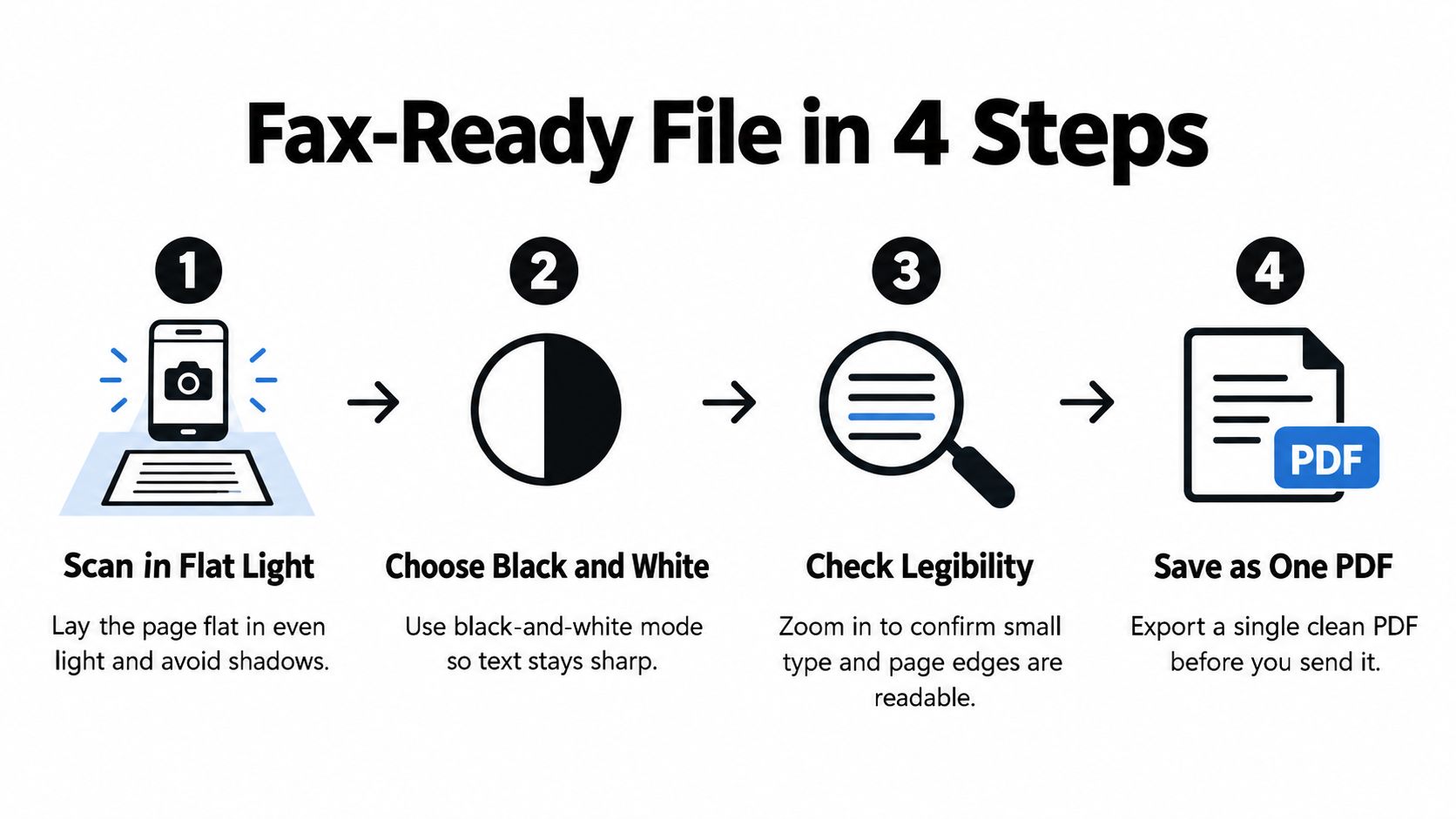
Build a readable document
- Use a document scanner. On iPhone, use Scan Documents in Notes or Files. On Android, Google Drive's Scan function can capture pages into a PDF. Lay the original flat in even light.
- Crop closely around the paper. Remove the table edge and shadows without cutting off signatures, dates or handwritten notes.
- Choose black-and-white or high contrast. Inspect faint stamps and pencil marks before accepting the result. Increase contrast only as far as you can without erasing useful detail.
- Export the complete document as a single PDF. Word formats may be accepted, but PDF gives you more control over page breaks and layout.
- Compare the exported page count with the selected allowance. Remove accidental blank pages, not material the recipient needs.
- Inspect small text and edges. Check signatures, identification details and any writing near the margins. Rotate sideways pages before saving.
- Confirm the recipient's identity and fax number using a trusted contact channel. Don't rely solely on an old email signature or a number copied from an unfamiliar message.
The scanning and faxing guide can help when you need to move a scan from your phone's document app into the browser's file picker.
Include a cover sheet when a shared department number or busy front desk makes routing unclear. Keep it functional: intended recipient, department, sender contact and a brief purpose.
How to Send a Fax From Your Phone Browser
Say your landlord needs a signed lease before the office closes, and you're away from your computer. Save the signed document to Files or Downloads first so you're not searching through attachments while filling out the send form.
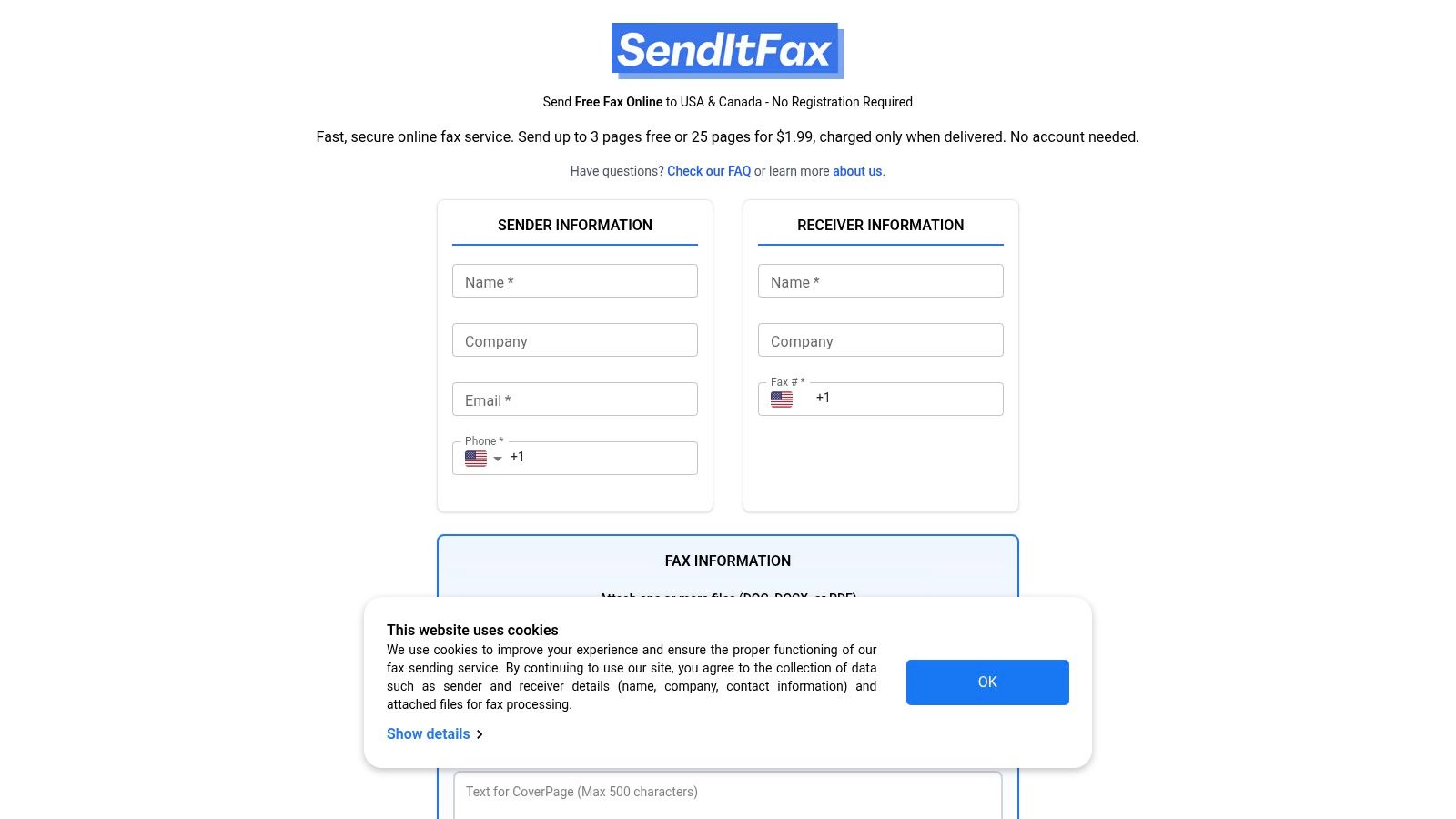
The browser interface brings the upload and addressing fields together.
Complete the send form
- Open the service in Safari or Chrome. Use the browser directly; the no-account route doesn't require an app installation.
- Tap the upload control and select your PDF, DOC or DOCX. If the document is stored in email, save it to your phone before selecting it.
- Enter the recipient's fax number. This browser route accepts US and Canadian destinations. Check every digit against the number the recipient confirmed.
- Fill in your sender name and contact details. Use an email address you can access because delivery updates won't help if they go to an abandoned inbox.
- Choose the cover arrangement. Add a short routing message when needed. The paid option allows you to omit the cover entirely.
- Select the appropriate allowance before paying or submitting.
Free tier versus Almost Free plan
| Plan | Price | Page limit | Extras |
|---|---|---|---|
| Free tier | Free | Up to 3 pages plus cover, 5 faxes a day | Service branding on the cover |
| Almost Free | $1.99 per fax | Up to 25 pages | Priority delivery, no branding, cover can be omitted |
Payment for the paid option is processed through Stripe. Choose it for the allowance or presentation requirements, not because you expect it to bypass a busy receiving machine.
- Review the complete document. Inspect any available preview, or reopen the saved file if the form doesn't provide a detailed preview. Check the destination again before submitting.
- Save the submission confirmation, then retain the final transmission status when it arrives. Keep the file you actually sent, not an earlier draft.
This video offers a visual walkthrough of the phone-fax workflow.
Keep the final result: An upload acknowledgement shows that the service accepted your job. The completed transmission report is the record to retain.
Don't repeatedly submit the same document just because the browser has finished loading. Check the job status first so the recipient doesn't receive duplicate copies.
How to Receive Faxes and Confirm They Arrived
The browser send tool described here is one-way. To receive documents on your phone, you need an assigned fax number from an app or cloud provider, with incoming pages delivered through its app, inbox or PDF download.
Your ordinary mobile number doesn't become a fax number because you install a scanner. The receiving service supplies the fax endpoint and converts incoming transmissions into files you can open.
Set up the incoming workflow
- Get a receiving number and share it in the dialing format the sender needs. Label it as a fax number in your contact details.
- Enable push notifications or email alerts. Check that your phone's notification settings allow the app to display them.
- Test from an independent sending service. Open the received attachment and verify that the complete test document is readable.
- Choose an approved storage location and a consistent naming pattern, such as sender, subject and receipt date.
- Preserve related records. For important documents, request the sender's report and store it with the incoming file.
A physical machine needs a compatible telephone connection and appropriate answering settings instead. Don't share a voice line casually if missing either calls or faxes would disrupt work.
Healthcare offices also need someone responsible for routing incoming records. MedicalVirtual's Hire Medical Virtual Assistants resource is relevant when evaluating administrative help, but access to faxed patient records still requires appropriate permissions and safeguards.
Delivery and review are different milestones: Ask the recipient to confirm that the pages are complete and have reached the person responsible for acting.
The guide to confirming fax receipt helps distinguish a transmission record from that human acknowledgement.
Faxing Outside the US and Canada
The browser route described above is limited to US and Canadian fax numbers. For another destination, choose a fax app or cloud service that explicitly supports international sending to that country.
Don't assume that a subscription includes every destination. Providers can apply destination-specific charges, exclude certain number types or require prepaid credit for international jobs.
Check the destination before paying
- Confirm the country and dialing format. Ask the recipient for the international version of the fax number, including the country code. Don't automatically retain a domestic trunk prefix when converting it.
- Verify that you have a fax endpoint rather than a voice-only switchboard. Ask which department monitors it and when staff are available.
- Check the destination rate and billing unit. Determine whether charges apply per page, per attempt or under an included allowance, and review how failed attempts are treated.
- Send a short test when the deadline or document sensitivity justifies it. Ask the recipient to verify readability before transmitting the complete file.
- Keep the final report and arrange a callback if the document requires prompt action.
Fax remains part of some overseas office workflows: Bitkom's representative 2024 survey of 604 German companies found that 77% of companies with at least 20 employees still used fax machines to transmit documents, as reported by Börsenblatt. That makes checking the actual destination more useful than assuming an overseas office will prefer email.
For number formatting, use the international fax numbers guide alongside the recipient's own instructions.
Schedule around the receiving office's working hours and local holidays. A technically successful transmission after closing time won't help if nobody can route it before your deadline.
For sensitive cross-border records, confirm your organization permits the service and destination before uploading. International reach isn't the same as approval to transmit a particular document.
Common Phone Fax Problems and How to Fix Them
Start with the file when the upload is rejected. Start with the transmission status when the upload succeeds but delivery fails. Those are different stages, and changing the scan won't repair a busy receiving line.
Phone fax symptoms, causes and fixes
| Symptom | Likely cause | Fix |
|---|---|---|
| Upload rejected | Page count exceeds the allowance or file type isn't supported | Re-export as PDF, remove unintended blank pages and select an adequate allowance |
| Call connects but recipient gets nothing | Wrong endpoint, negotiation failure or unavailable receiving equipment | Reconfirm the fax number and ask the recipient to check readiness before retrying |
| Pages blurry, dark or half-blank | Shadows, poor focus, faint originals or aggressive contrast | Rescan under even light; inspect faint writing and the full page before saving |
| Transmission stops partway | Interrupted upload, service problem or receiving-line errors | Confirm the upload completed; ask which pages arrived and inspect the final error status |
| Recipient reports a missing page | Incomplete source file, page-order error or partial transmission | Compare the saved document with the received set and agree what needs resending |
| Incoming voice calls drop into fax tones | Fax auto-answer intercepts a shared voice line | Separate voice and fax, or configure distinctive ring if the carrier supports it |
| No status report arrives | Incorrect email address, spam filtering or unfinished job | Check spam, verify the contact address and inspect the service's status information |
Fix the right connection
Your phone's internet connection carries the upload to the service. The service then handles fax transmission to the receiving endpoint. Moving closer to your Wi-Fi router may fix an interrupted upload, but it won't clean up the recipient's telephone line.
For a shared physical line, inspect Auto Answer and Rings to Answer in the machine's settings. If an answering machine is present, configure the fax to answer later according to the manufacturer's shared-line instructions.
Repeated failure isn't proof that the file is innocent. An unusual PDF can fail consistently too, so try a freshly exported document and a different destination before blaming either telephone connection.
Keep the error message, destination and affected page details when requesting support. That gives the provider something actionable instead of a vague report that the fax didn't work.
For occasional outgoing documents, a browser service avoids maintaining a fax machine or installing an app. Visit SendItFax to upload a supported file for a US or Canadian recipient, choose the appropriate sending option, and keep the final transmission report with your document.
Related Posts
Cover Sheets for Word: Build, Format, and Fax
How to Fax a Document: Complete Guide for 2026