How to Send Fax from Gmail Without a Fax Machine
You've got a signed form on your laptop, a fax number in a text message, and no fax machine within reach. Gmail is open, so the obvious question is whether you can send the document from there and move on.
You can, but Gmail doesn't include a native fax function. You need an email-to-fax gateway that accepts your Gmail message, converts the attachment into a fax transmission, and sends it to the recipient's fax number. For a single urgent document, that route may be convenient. For a handful of pages today, a browser upload may be faster.
The practical choice isn't “how do I send fax from Gmail?” It's which workflow creates the fewest opportunities for delay, formatting mistakes, and compliance problems.
Getting Started With Gmail to Fax
You have a signed form ready, a fax number in a message, and no fax machine nearby. Gmail can handle the send, but only through an email-to-fax gateway. For a few pages today, choose the route that creates the least room for delay or formatting errors.
Gmail-to-fax is an email-routing workflow, not a software installation. You compose a Gmail message, enter the gateway's required fax address, attach the document, and let the provider convert and transmit it.
Prepare these items first:
- A working Gmail account: Personal and Workspace accounts use the standard compose window, subject to Gmail's attachment rules.
- The complete destination fax number: Include the country code and area code. Check the stored digits instead of trusting a contact entry.
- A prepared document: PDF is the safest choice. DOC and DOCX files may work, depending on the gateway.
SendItFax acts as the gateway between Gmail and the receiving fax line. It reads the destination address, converts the email and attachment into a fax transmission, and routes the transmission through its fax infrastructure. You do not need dedicated fax hardware, a telephone line, or a local driver.
The address format depends on the provider. One gateway may use the fax number plus its domain, while another may require an account identifier or routing suffix. Copy the format from the service you plan to use, not from an unrelated provider.
Practical rule: Keep the gateway's confirmation email as part of the transmission record. It shows that the service accepted and processed the send.
A basic Gmail-to-fax workflow can take under 2 minutes in typical cases, followed by a delivery confirmation email, according to this Gmail fax workflow guide. Use that confirmation as evidence of processing, not proof that the recipient read the pages. Verify the number before sending and confirm receipt when the document matters.
For confidential records, review the gateway's privacy terms, retention practices, and recipient coverage. Email-to-fax is convenient, but it remains a third-party transmission workflow.
Composing and Sending Your First Fax
The first send should look familiar. Open Gmail, start a new message, and prepare it as though you're emailing a document, with one important difference: the To field is a fax route, not an ordinary email address.
Build the message carefully
Use the fax number format required by your gateway. A typical pattern may look like [email protected], with the full number followed by the provider's routing domain. Don't treat that example as universal. Check the service's instructions before sending, because a different gateway may require another suffix or address structure.
Keep the subject useful. Many gateways use it as a cover-sheet label or transmission note, so enter the recipient's name, company, or document description. A blank subject might still be accepted, but it makes the fax harder to identify on the receiving end.
Put only a short, intentional note in the body. Depending on the provider, Gmail's body text may appear on the cover page. Don't paste confidential details into the body unless you want them included with the fax.
Attach the document as a PDF or another supported file type. If you have several files, attach them in the order the recipient should read them. Then send the message and wait for the gateway's delivery confirmation.
Use a descriptive filename before attaching the file. Smith_Lease_Addendum.pdf is easier for the receiving office to identify than scan0047.pdf, especially when several faxes arrive together.
For a fuller provider-specific walkthrough, compare these instructions for faxing through email. The important point is to separate the three message areas: the destination belongs in To, the identifying label belongs in Subject, and any cover-page note belongs in the body.
A short visual demonstration can help if you're doing this from a laptop for the first time.
After sending, don't immediately close Gmail. Keep the sent message and the confirmation email together. If the fax is time-sensitive, contact the recipient through another channel and ask them to confirm legibility, particularly when the document contains signatures, tables, or small print.
Choosing Between Gmail Routing and Browser Upload
Gmail routing is convenient when the document and recipient details are already in your inbox. Browser upload is cleaner when you're handling a one-off fax and don't want to construct a special email address.
| Factor | Gmail Routing | Browser Upload |
|---|---|---|
| Starting point | Gmail compose window | Provider's web form |
| Recipient entry | Fax number in a provider-specific email format | Fax number entered directly |
| Best fit | Repeat sends and inbox-based work | Occasional or urgent one-off sends |
| Record keeping | Message remains in Gmail's Sent folder | Confirmation comes from the web service |
| Gmail account | Required | Not necessarily required |
| Main risk | Incorrect routing syntax or body content | Incorrect form entry or upload details |
Choose Gmail routing when you're already replying to a client, attaching a document from Drive or your computer, and want the sent message stored with your regular correspondence. It also makes sense for recurring recipients, provided you save and verify the correct fax route instead of retyping it each time.
Choose browser upload when you only need to send a few pages today, don't have a Gmail account available, or want to avoid saving a fax number as a contact. A web form removes the provider-address syntax and usually makes the cover-page fields more visible.
SendItFax supports both email-based routing and a browser upload option that doesn't require account creation, according to its publisher information. That makes the decision operational rather than ideological. Use the interface that reduces the number of steps for the job in front of you.
Cost, page limits, and confirmation handling depend on the provider. The key differentiator is friction. If Gmail adds an extra formatting decision, use the browser. If Gmail is already where the file and conversation live, routing can be the quicker path.
Attachment Limits and Number Formatting Rules
A fax that fails in Gmail usually has a practical cause: the attachment is too large, the gateway cannot convert the file, or the destination number does not match the provider's routing rules. Check those constraints before spending time rewriting the message.
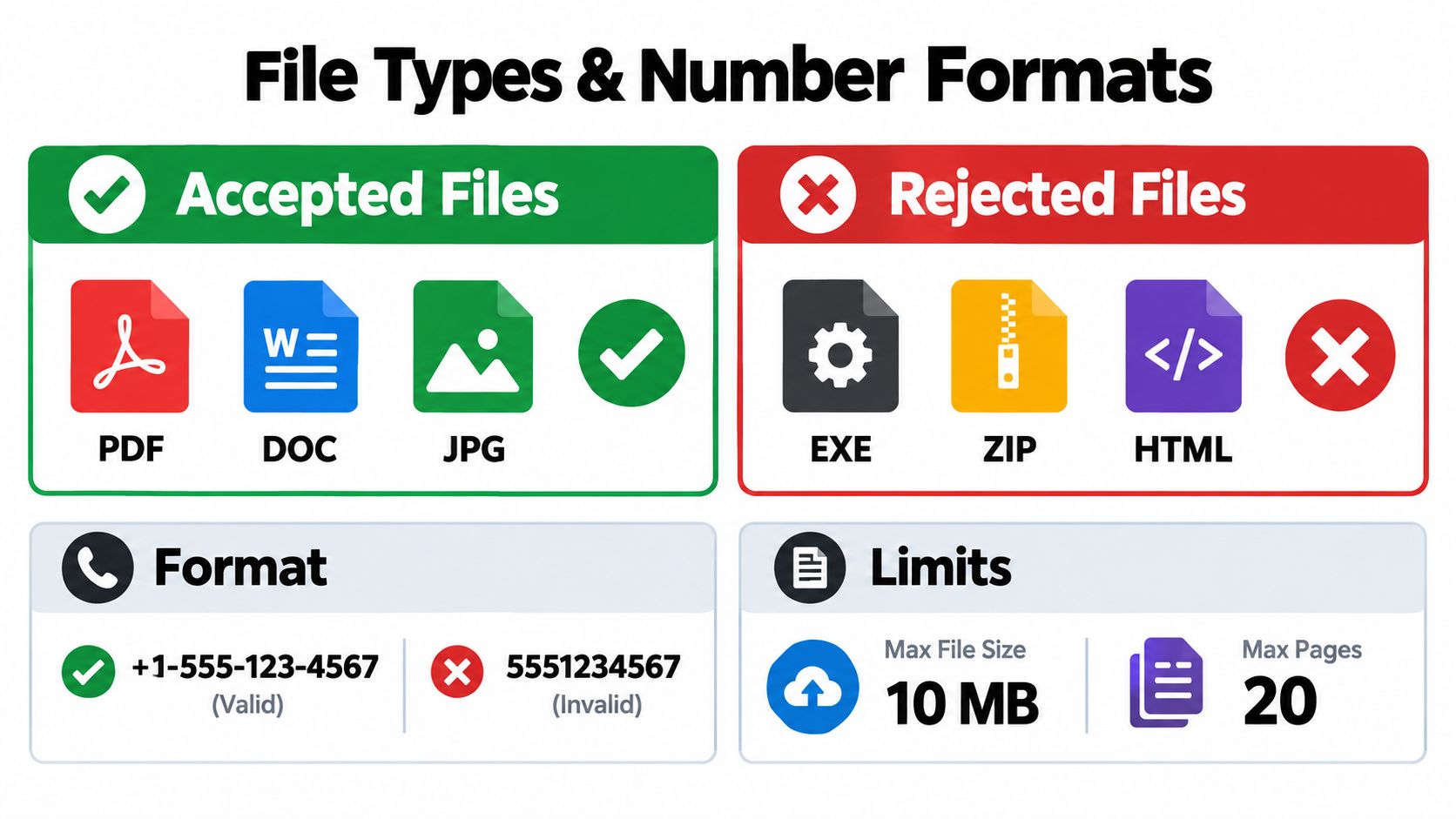
Gmail allows 25 MB total attachments per message for personal accounts, according to Google's Gmail attachment guidance. Your fax gateway may allow less. Compress oversized PDFs, remove redundant scans, or divide the job if the provider supports multiple transmissions. Gmail accepting the message does not guarantee that the fax service can process it.
Prepare the file before you compose
Use PDF as the default. It keeps page layout stable and is easier for a gateway to render. DOC, DOCX, TXT, JPG, and PNG may also work, but formats vary by provider. Skip password-protected PDFs, macro-enabled Word files, and unusual exports because the converter must read and render every page before transmission.
Page allowances are separate from Gmail's attachment rule. A compact scan can require more processing than a text document with the same page count, so check the gateway's limits before attaching a long file.
Format the destination deliberately
For U.S. and Canadian destinations, enter the country code, area code, and local number. One provider may accept 15551234567, while another may require a plus sign or a service-specific suffix. International sends also depend on the gateway's dialing rules.
A bad number may not create a clear bounce. A typo can route the fax to the wrong recipient, reach a disconnected line, or leave the gateway unable to explain the failure.
Verify the destination in a plain-text note before opening Gmail. Inspect every digit, then remove spaces, dashes, and parentheses if the service forbids them. Copy the checked number into the exact address format the gateway requires. Use this fax number formatting guide when the provider's pattern is unclear.
Why Fax Still Matters in 2026
You can finish a document in Gmail, yet the receiving healthcare office, law firm, title company, government department, or financial institution may still require fax. Their process decides the channel, not your preference for email, portals, or electronic signatures.
Fax remains widely used. A cited industry report attributes more than 17 billion individual documents sent by fax in 2019 to its source data, including more than 9 billion U.S. healthcare pages. The same report references a 2023 Bitkom survey of 505 German companies, finding 82% still using fax, with about one-third using it frequently or very frequently.
| Industry | Common Fax Documents | Why Fax Persists |
|---|---|---|
| Healthcare | Patient records, prescriptions, lab orders | Established exchange and record-handling routines |
| Legal | Pleadings, settlement documents, filings | Need for documented transmission |
| Real estate | Signed title documents and lender packages | Counterparties still request faxed signatures |
| Government | Forms, notices, contractor paperwork | Legacy systems and agency requirements |
| Finance | Account forms and supporting records | Controlled workflows and institutional acceptance |
The FCC's 2015 declaratory ruling also affects efax use. It treats an efax, meaning a conventional fax converted into an email attachment, as covered by the TCPA and JFPA. Unsolicited fax advertisements are restricted. Senders generally need permission unless an established business relationship applies, and advertisements must provide clear opt-out information and honor requests within 30 days, as described in the cited FCC ruling summary.
Gmail-to-fax is therefore a workflow choice, not a legal shortcut. For a handful of pages today, use a browser gateway with no account if it accepts your file and destination. Choose Gmail routing when you expect repeat sends, need a searchable record, or want to work from an existing inbox. If the recipient accepts only fax, either route can meet the requirement without buying a fax machine.
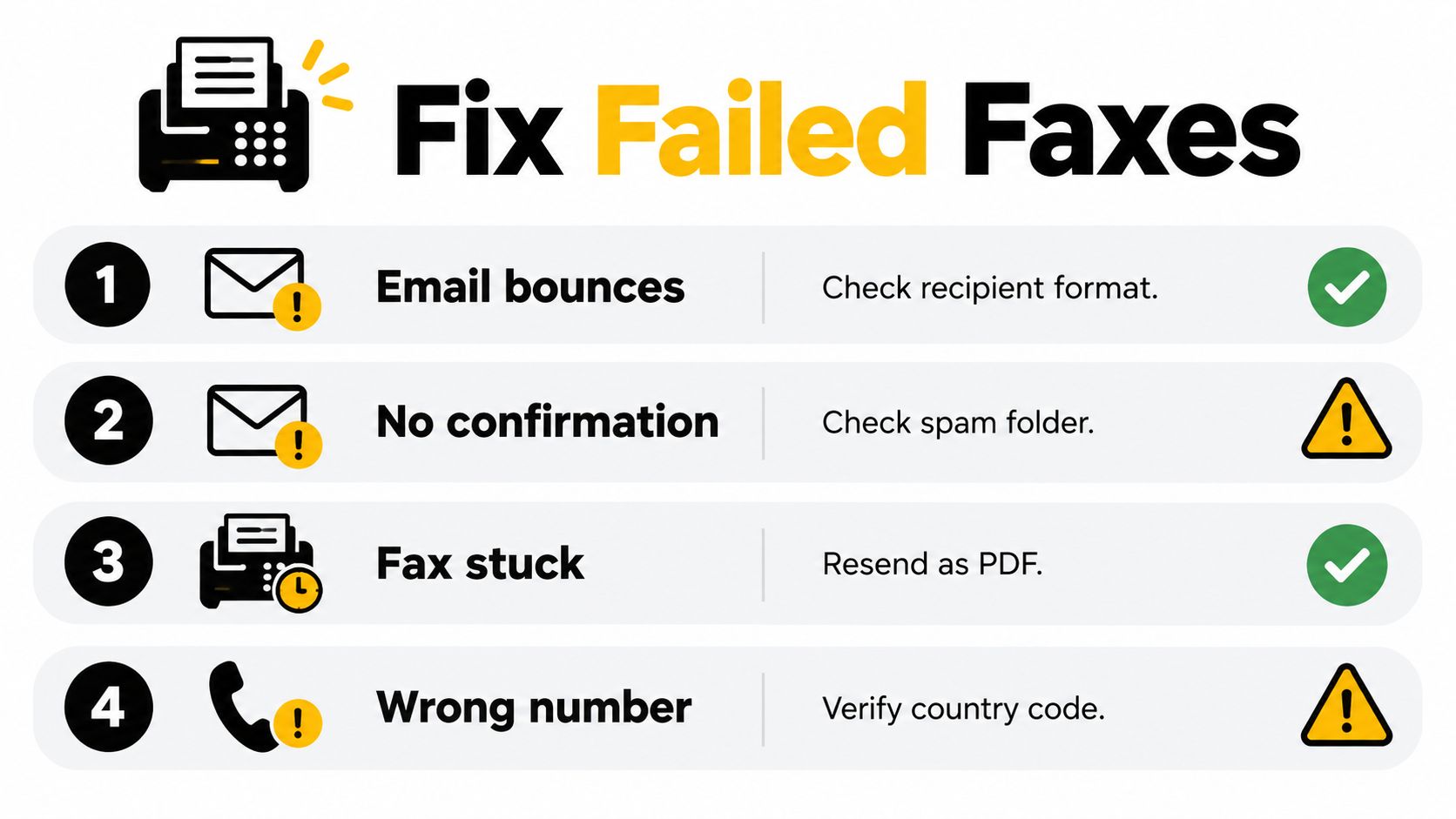
Troubleshooting Failed or Stuck Faxes
A Gmail fax can fail at three different points: Gmail may reject the message, the gateway may reject or misroute it, or the receiving machine may produce an unreadable result. Diagnose the stage before you resend, or you'll repeat the same mistake.
The email bounces or no confirmation arrives
An unsupported attachment, corrupted PDF, or parser-unfriendly body can stop the gateway before transmission. Export the document again as a fresh PDF, remove body text, use a plain subject, and resend with one attachment.
If Gmail shows the message as sent but the confirmation doesn't appear, check spam and search for the gateway's domain. A delayed receipt doesn't prove that the fax failed, so avoid sending repeated copies until you've checked the sent message and provider status.
The gateway accepts the message, but the fax doesn't arrive
The number may be wrong, missing its country code, or contaminated by formatting copied from autocomplete. Verify it against a known-good source, rebuild the provider-specific destination address, and send again.
This is the failure where careful operators save time. Don't assume that a successful email handoff means the intended office received the document. The gateway can accept your message while the destination number remains invalid or unreachable.
For a focused diagnostic sequence, use this guide to faxes that aren't sending.
Pages arrive blank, clipped, or unreadable
The source file may contain a low-quality scan, a non-standard page size, or content positioned outside the printable area. Re-export the file using 200 DPI minimum for scanned pages and choose Letter or A4 paper size before attaching it.
Inspect the PDF yourself at normal zoom. Check that signatures are visible, tables fit inside the margins, and every page contains content. Fax conversion can expose layout problems that aren't obvious in the original editing application.
The confirmation arrives much later
The gateway may be processing a queue, or the confirmation may be sitting in spam. Whitelist the provider's domain, search all mail folders, and check the service status before retrying.
Operator habit: Send a test page to your own fax number before transmitting a high-stakes document. It checks the address, conversion, page layout, and confirmation path in one controlled send.
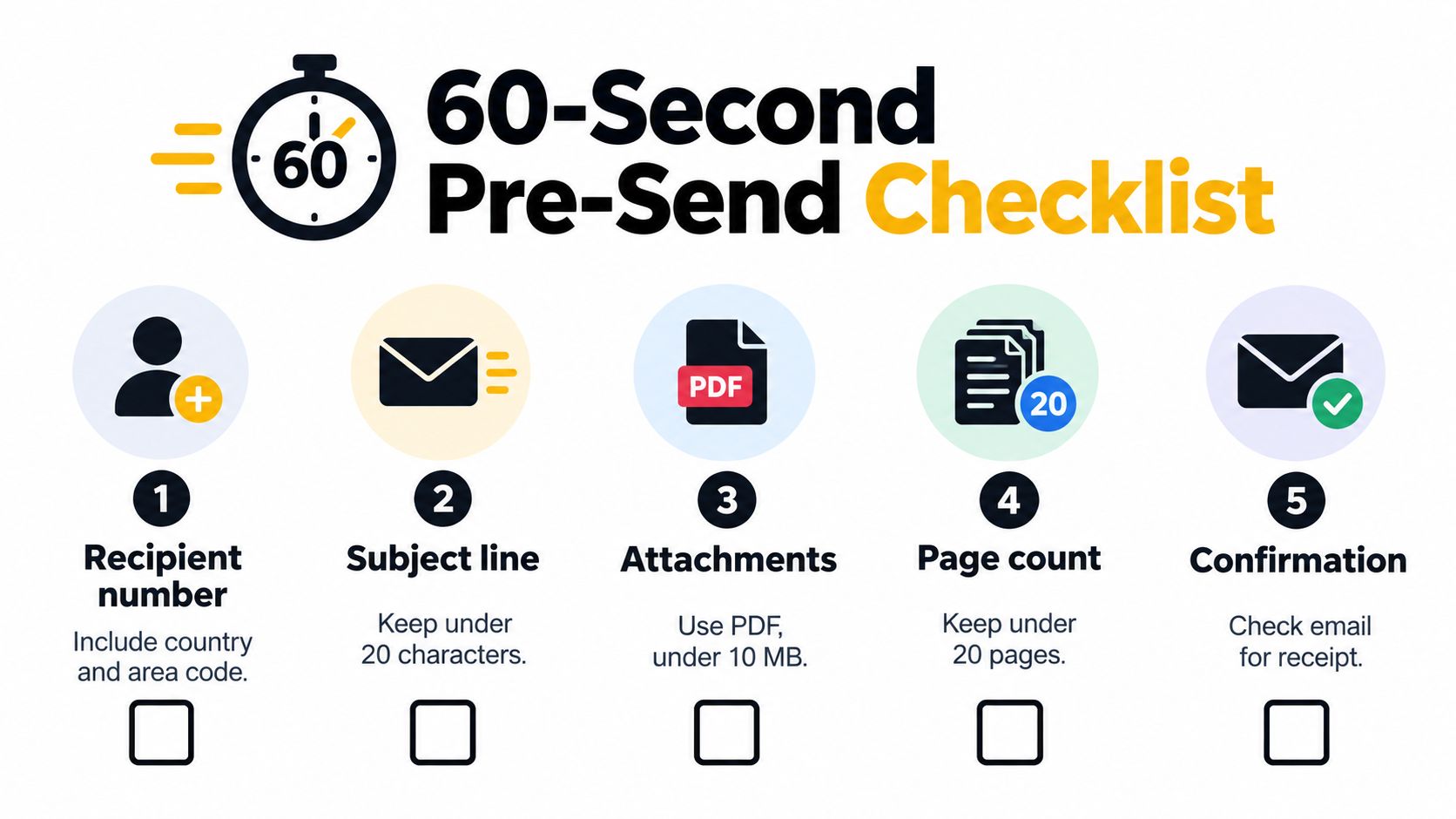
Quick Checklist Before You Hit Send
A fax can leave Gmail and still fail at the destination. Use this checklist before every send. Treat each item as a gate. If one answer is no, fix it before the message leaves your account.
- Recipient verified: Confirm the fax number, country code, area code, and trusted contact record.
- Gateway format correct: Use the provider's exact address format. Do not copy a pattern from another service.
- File readable: Attach a supported file, preferably a PDF, without password protection or conversion problems.
- Size and pages acceptable: Keep the attachment within Gmail's 25 MB limit for personal accounts, as documented in Google's attachment support. Check the gateway's page allowance separately.
- Filename clean: Use a clear filename without symbols that could confuse the recipient or gateway.
- Cover details complete: Put the recipient or company in the subject. Keep the body limited to information intended for the cover page.
- Sensitive content controlled: Remove unnecessary personal information from the subject and body.
- Confirmation planned: Know which email should confirm delivery, then archive that confirmation with the sent message.
- Retry decision ready: If delivery fails, verify the number and file before sending another copy.
- Timing appropriate: Allow processing time for urgent documents and arrange another way to confirm receipt.
Choose the sending workflow based on the job. Use Gmail routing for repeated faxes to a verified destination when keeping the record in your Sent folder matters. Use browser upload for an occasional fax when you want to avoid account setup and enter the number through a guided form.
For a single fax under ten pages today, browser upload usually involves fewer steps. For recurring work, Gmail routing plus a carefully saved contact is the better operating pattern.
SendItFax supports browser uploads of DOC, DOCX, and PDF files to recipients in the United States and Canada without account creation. Its email-routing option supports the Gmail workflow described above. Choose the path that fits today's task, then visit SendItFax to prepare and transmit the document.
Related Posts
Fax Machines and Scanners Compared for 2026
Phone with Fax: How to Send and Receive Faxes